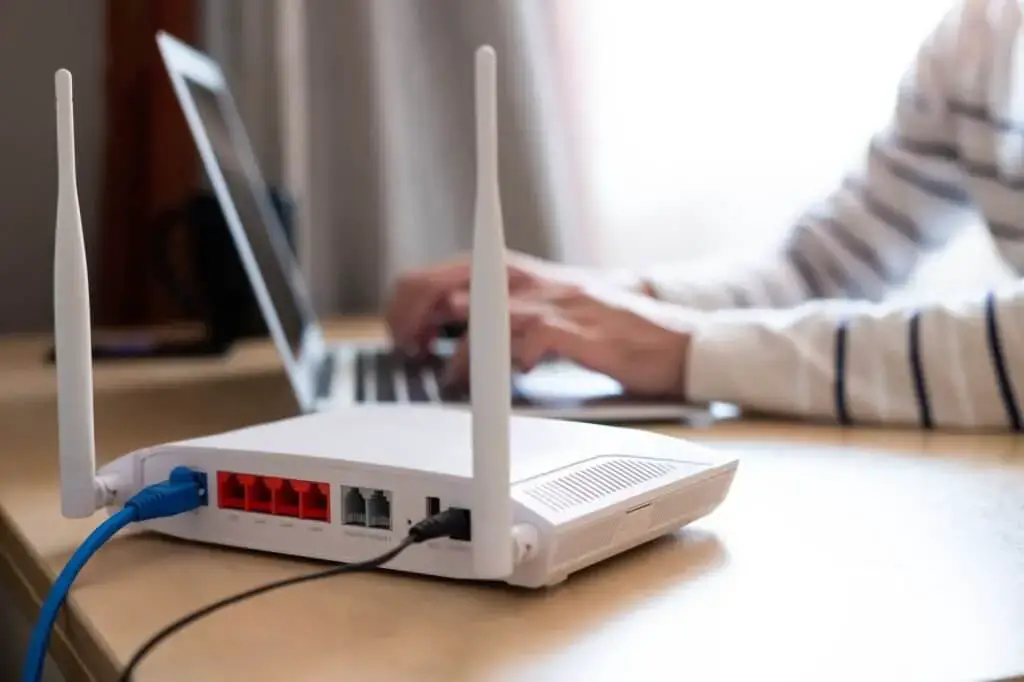
Shaw routers are a popular choice for individuals and businesses who want to ensure reliable and fast internet connectivity. To customize and manage the settings of the Shaw router, users need to log in to the router’s web interface. This can be done by accessing the router’s login page using a web browser and entering the correct login credentials.
In this post, we will walk you through the process of logging in to your Shaw router and accessing its settings. Whether you’re a new or experienced user, you will find the instructions clear and easy to follow. So, let’s get started!
How To Log In To The Shaw Router?
Prerequisites
Before logging in to your Shaw router, you’ll need the following:
– A computer or laptop with an internet connection.
– Your Shaw router and power adapter.
– Login credentials for the Shaw router’s web interface. Usually, this is a default username and password set by the manufacturer, which you can find printed on the router.
Connecting to Shaw Router
Once you have all the items listed above, you can start connecting to your Shaw router. Here are the steps:
– Connect one end of an Ethernet cable to the back of your Shaw router and the other end to a computer or laptop. Make sure both devices are powered on.
– Alternatively, if you wish to connect wirelessly, you can connect to the Wi-Fi network of your Shaw router.
Finding Router’s IP Address
Once you’ve established a connection between your computer and the Shaw router, you need to find the IP address of the router. An IP address is an identifying number assigned to each device connected to a network.
You can find the IP address of your Shaw router by using either Command Prompt (Windows) or Terminal (Mac). Both applications can be found in the Start menu (Windows) or Applications folder (Mac).
Once you open either Command Prompt or Terminal, type in ‘ipconfig’ and press Enter. This will display a list of active connections and their IP addresses. Look for the one that is labeled as Default Gateway – this is your Shaw router’s IP address.
Accessing the Router’s Login Page
After finding the IP address of your Shaw router, you can now access its login page. Here are the steps:
– Open your preferred web browser (e.g. Chrome, Firefox, Safari).
– Enter the IP address of your Shaw router in the address bar and press Enter.
– You will be redirected to the router’s login page.
Logging Into the Router
Finally, you can now log in to your Shaw router. Here are the steps:
– Enter the default username and password provided by the manufacturer.
– Click Log In or press Enter on your keyboard.
– You will be taken to the dashboard of your Shaw router where you can customize and manage its settings.
Conclusion
Logging in to your Shaw router is an easy process that involves connecting your computer or laptop to the router, finding its IP address, accessing its login page, and entering the correct credentials. By following the steps above, you will be able to log in to your Shaw router swiftly and access its settings.
We hope this article has been helpful and that you are now able to log in to your Shaw router without any issues. If there are still any doubts or questions, feel free to reach out to us! We’re always here for you.
How do I find out my Shaw router password?
1. Access your Shaw router settings: To find out your Shaw router password, you must access your Shaw router settings. Depending on the type of model used, this can be done in one of two ways. If you have an older model, look for a sticker on the back or side and enter those credentials into your browser’s login page.
For newer models, you can use the Shaw myAccount app to access your router settings. Once logged in, you will be presented with options to manage your networks and devices.
2. Locate your password: Next, locate the “Network Settings” option and select it. Within this page, you should see a section labeled “Wi-Fi Settings”. Here you will find your network name (also referred to as an SSID) and your router password. Make sure to write down the password or take a screenshot so that you can refer back to it when needed.
3. Change your router password: If desired, you can also use this page to change your password. This is a good idea if you fear that someone may have obtained access to your network or if you simply would like to update the security of your router. Enter in your new password and click on save changes. You will then be asked to restart your router for the new settings to take effect.
By following these steps, you can quickly and easily find out your Shaw router password. Remember to keep this information secure and to change it periodically for added security. Doing so will ensure that unauthorized users cannot access your network and gain access to sensitive data.
Shaw router default admin password
The default admin password for Shaw routers can vary depending on the specific model and firmware version. However, the most common default admin password used by Shaw is “admin” (without the quotation marks). Try entering “admin” as the password when accessing the router’s administration settings.
If “admin” does not work, you can try other common default passwords such as “password” or “1234”. It’s important to note that using default passwords can pose a security risk, so it is strongly recommended to change the default password to a unique and secure one as soon as you access the router’s settings.
If none of the common default passwords work, or if you have changed the password and forgotten it, it’s best to contact Shaw customer support. They can assist you in resetting the router or providing the necessary steps to regain access to the administration settings.
How do I reset my Shaw Gateway login?
If you’re having trouble logging into your Shaw Gateway account, don’t worry – there are a few simple ways to reset your login information.
To reset your Shaw Gateway username:
1. Visit the Shaw Gateway login page.
2. Click on the “Forgot Username?” link.
3. Enter your account email address and click “Submit.”
4. Check your email for a message from Shaw Gateway with instructions on how to reset your username.
To reset your Shaw Gateway password:
1. Visit the Shaw Gateway login page.
2. Click on the “Forgot Password?” link.
3. Enter your Shaw Gateway username and click “Submit.”
4. Check your email for a message from Shaw Gateway with instructions on how to reset your password.
If you’re still having trouble logging into your Shaw Gateway account, feel free to contact Shaw Customer Support for assistance.
How do I change my Shaw modem settings?
If you need to change your Shaw modem settings, there are a few different ways to do so. The first is to log in to the modem’s web interface. To do this, you will need to know the IP address of your modem. This can be found in the documentation that came with your modem, or by doing a search for “What is my IP address?” in your favorite search engine.
Once you have the IP address, open a web browser and enter it into the address bar. This will bring up the login page for your modem. Enter the username and password that were provided to you when you set up your modem, and then click “Login.”
Once you are logged in, you will be able to change any of the settings that you need to. If you are not sure what a particular setting does, you can consult the documentation that came with your modem, or do a search for it online.
If you need to reset your modem to its factory defaults, you can usually do so by pressing and holding the reset button on the back of the modem for 30 seconds. This will reset all of the settings on your modem, so you will need to re-enter any customizations that you have made.
About Author
